

Using the Dashboard Tools
This section dives into some of the specific options you can select from the Side Control Panel to tailor the AirKeeper Dashboard to your needs. You’ll learn how to adjust map visualizations, understand the available data layers, integrate your own data, and generate customized reports for communication and advocacy.
We’ll break down each function to help you leverage the Dashboard’s full potential.
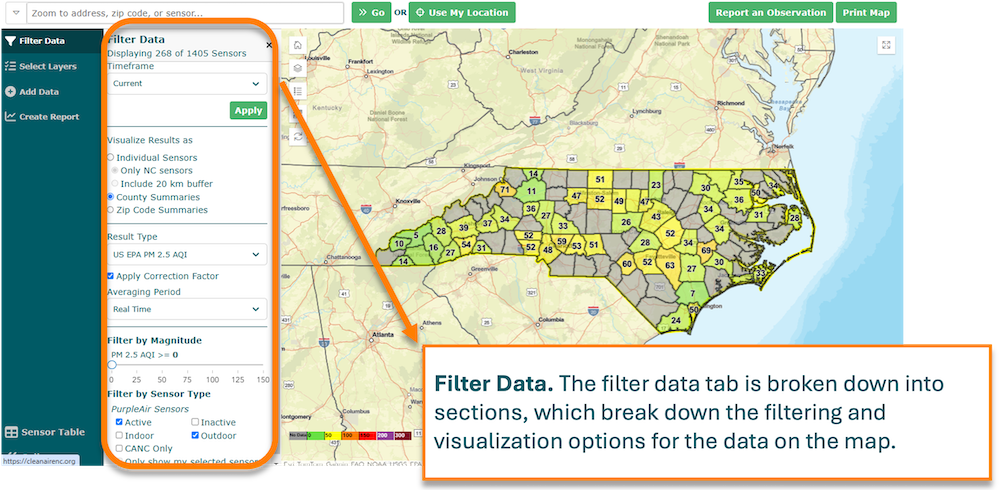
The Filter Data tool allows you to customize how PurpleAir sensor data is displayed. Users can alter the following settings:
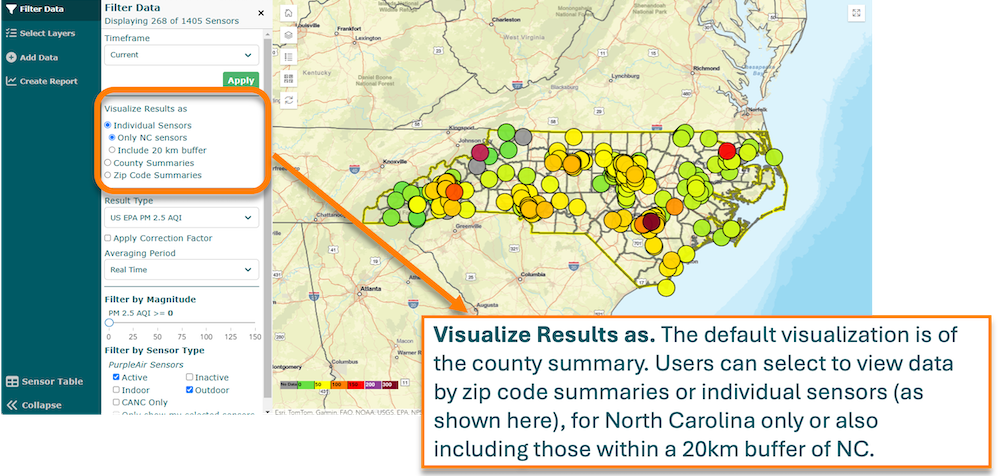
“Visualize Results as” allow you to display individual sensor data or get air quality summaries at the county or zip code levels.
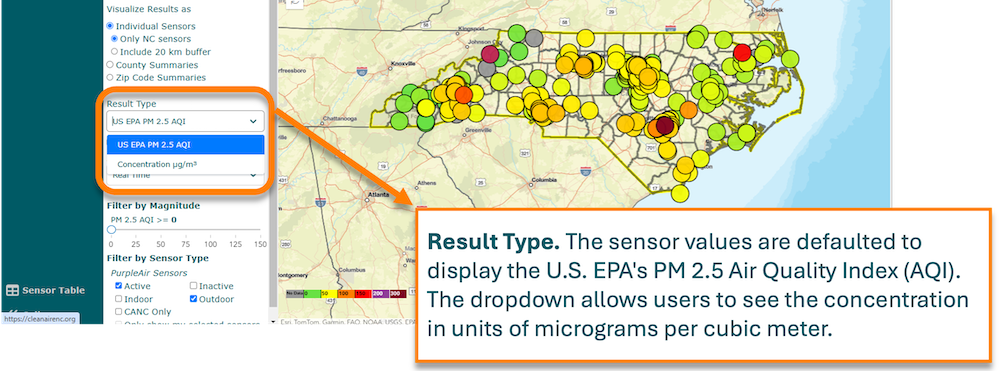
Choose whether to visualize PM2.5 measurements along the Air Quality Index scale or by concentration. You can also adjust the Averaging Period to show real-time data or hourly or daily averages.
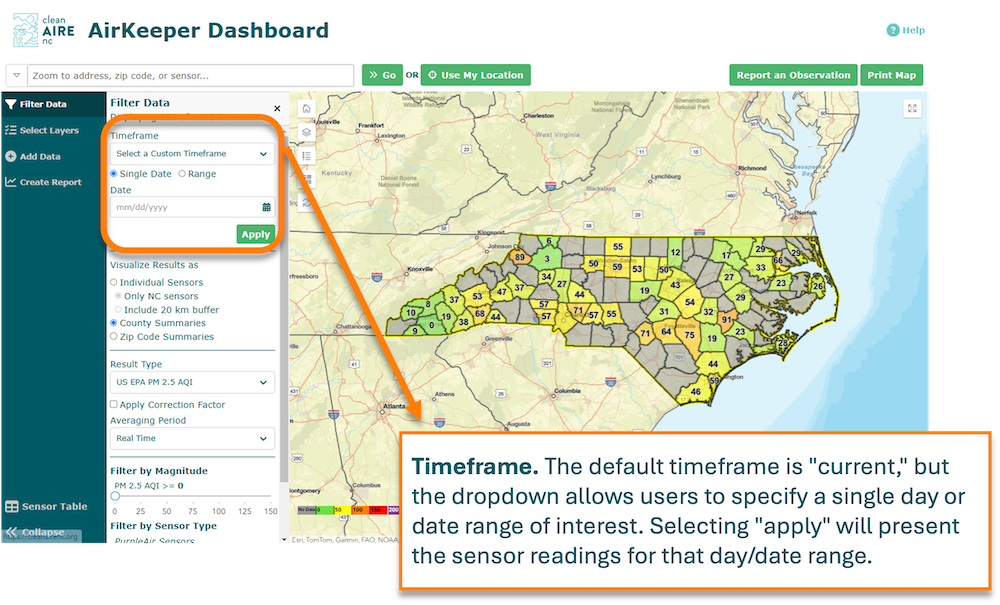
View current sensor data or choose specific periods for analysis. Use the dropdown menu to change the setting to “Select a Custom Timeframe,” then select Single Date or Range to choose a date on the calendar. Don’t forget to click OK after you choose a date. Sensor data does not refresh automatically so use the Refresh button on the Map Control panel for the most recent results.
Note: The maximum timeframe for available data varies per PurpleAir sensor. The earliest sensor on the map dates back to roughly 2017. We recommend downloading no more than one month of data at a time.
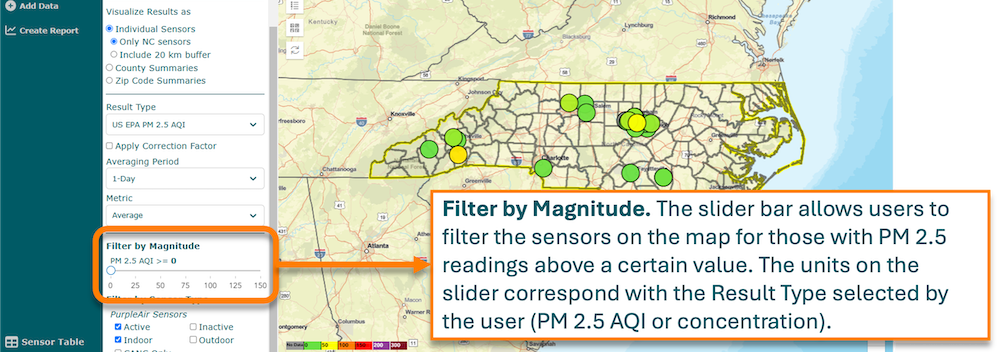
Visualize areas around the state displaying poor air quality. Use the slider bar to filter out sensors reading below a certain AQI level so that you can focus on areas with higher levels of exposure to PM2.5 for the timeframe being displayed.
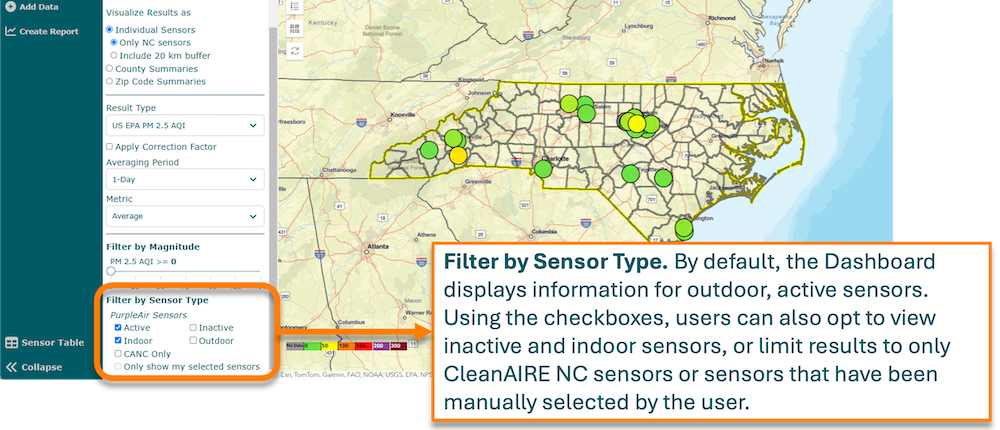
Filter out inactive sensors or choose to isolate data from the CleanAIRE NC AirKeeper Network. Choose to include or exclude indoor air sensors across the statewide PurpleAir Network. If creating a hand-picked selection of sensors (click on one sensor at a time and toggle to select), you have the option to only show those selected sensors both on the map and within the Sensor Table.
For more information, please refer to the Dashboard Glossary of Key Terms.
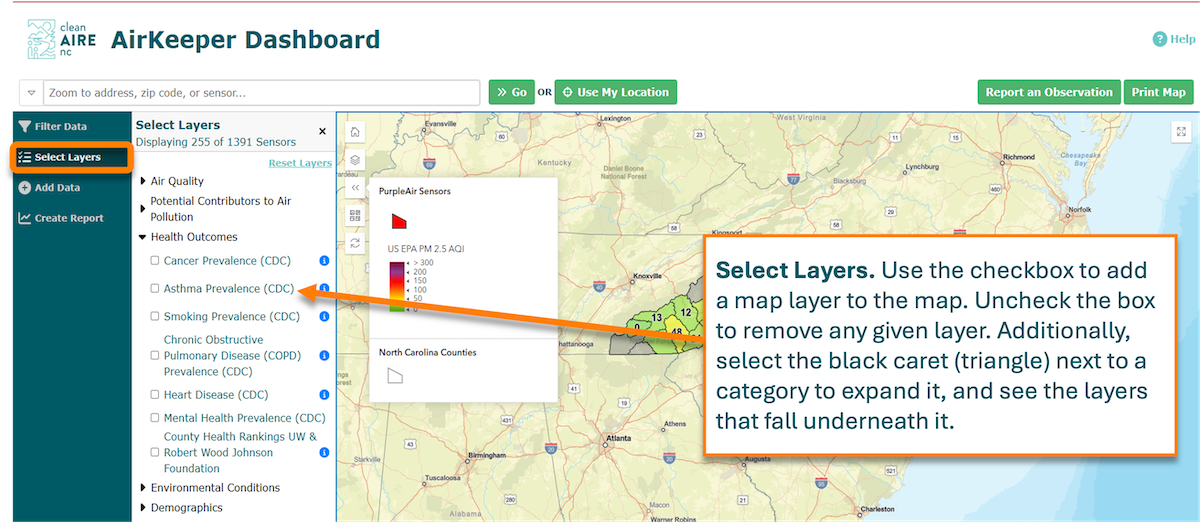
The Select Layers tool lets you overlay preselected data layers onto the map. The preselected data, or “map layers,” are organized into nine categories, with subcategories for easier navigation. Select the black caret icon (►) next to a category title to view all the available layers within that category, and click the checkboxes to choose which layers to display.
Click the blue information icon to the right of a given layer for an explanation of the data, as well as a legend showing symbology for that feature.
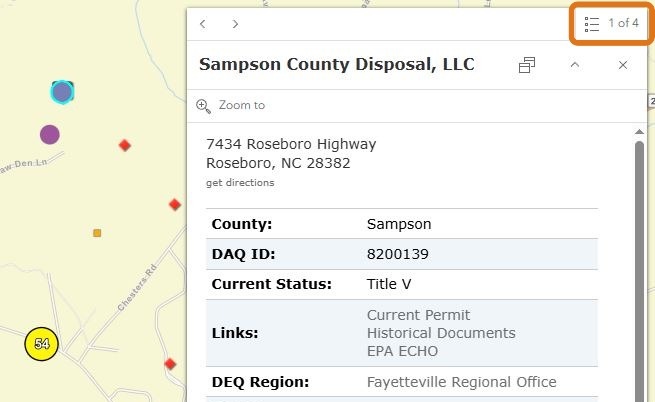
Individual features within all data layers can be selected on the map. Simply click on a point or area on the map and a pop-up window will appear. If multiple layers are beneath the point you have selected on the map, this will be indicated at the top right corner of the pop-up. Use the arrows to reveal information about the next layer beneath.
Select data from PurpleAir PM2.5 Sensors and Regulatory Air Monitors in North Carolina.
There are many ways human activities can contribute to air pollution, including extraction of materials, production of goods, and generation of waste. Some of these activities require permits by federal, state, or local governments (such as landfills, industrial facilities, etc.) or may result from existing or expanding infrastructure (such as highways). This category covers some of these potential contributors, including:
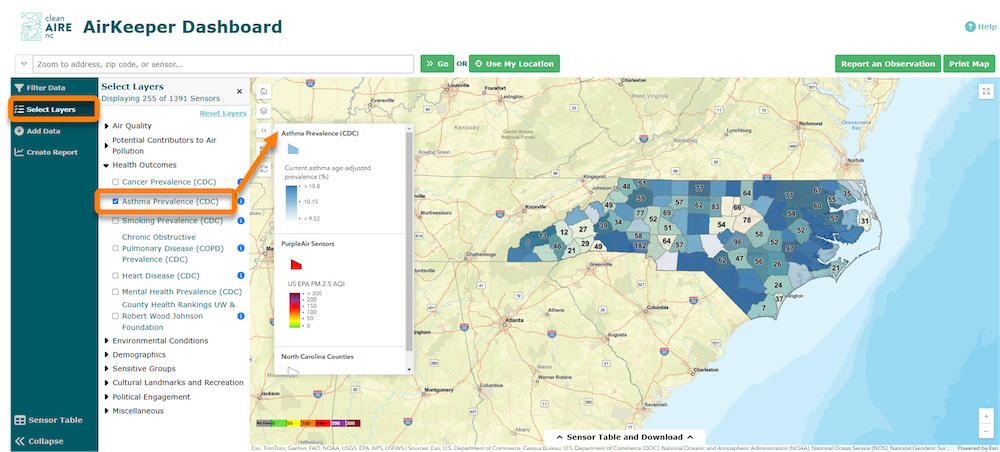
Explore how local air pollution patterns intersect with county-level health indicators, including age-adjusted prevalence rates of cancer, asthma, smoking, chronic obstructive pulmonary disease (COPD), heart disease, and mental health. Users can also access a map layer that assigns each county a health ranking based on various measures such as adult smoking, physical inactivity, and flu vaccinations.
Each of these layers can only be viewed one-at-a-time. Data for these layers are drawn from the Centers for Disease Control and Prevention (CDC) and the University of Wisconsin (UW) & Robert Wood Johnson Foundation.
Map layers in this category include current wind and weather station maps from the National Oceanic and Atmospheric Administration (NOAA), smoke and temperature forecasts from the National Weather Service, and flood hazard areas in North Carolina.
Layers included under Demographics represent North Carolina population and community information and characteristics. Several layers are derived from the most recent US Census and American Community Survey including Urban vs Rural, Race, Income, and Education at the Census Tract level. Additional context pertaining to social and environmental justice are provided through Justice40 tracts that highlight communities identified as disadvantaged by the federal government and historically redlined areas that document a history of disinvestment.
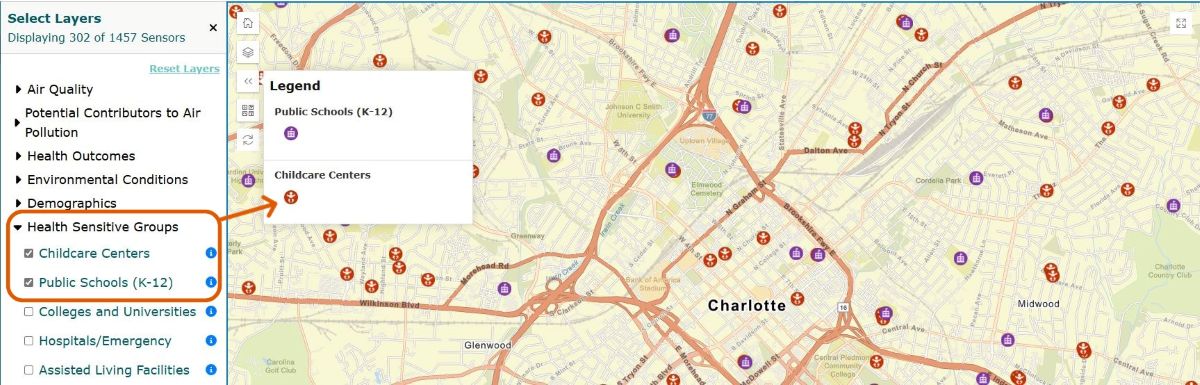
Several populations are more sensitive to poor air quality, such as children, the elderly, and immune-compromised people. Map layers representing concentrations of these groups include childcare centers, public schools (K–12), and assisted living facilities. Locations of hospitals and emergency services, as well as colleges and universities, are also mapped under this category.
These layers show the locations of landmarks such as cemeteries and places of worship. The USA Parks layer displays National Parks and Forests as well as county, regional, and local parks.
This category displays North Carolina’s congressional districts and state house districts. Both layers are available and maintained by the NC General Assembly.
This category shows state, county, zip code boundaries, and census tract. View state and federally recognized tribal boundaries, as well as lands owned by the Department of Defense.
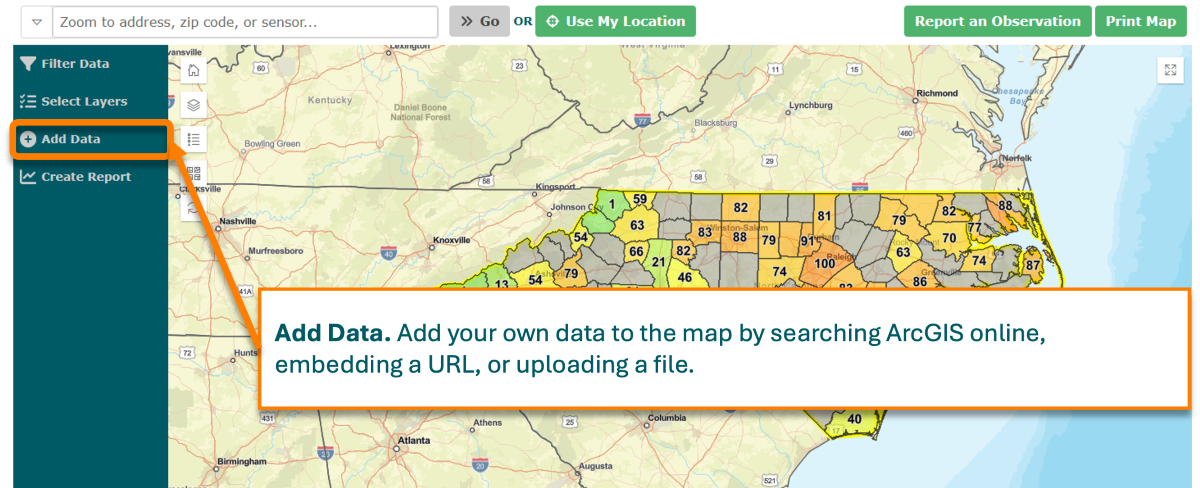
The Add Data tool allows you to enhance your map by incorporating external data from various sources.
Clicking on Add Data opens a panel with four new tabs to help users add external data to the map in a variety of ways:
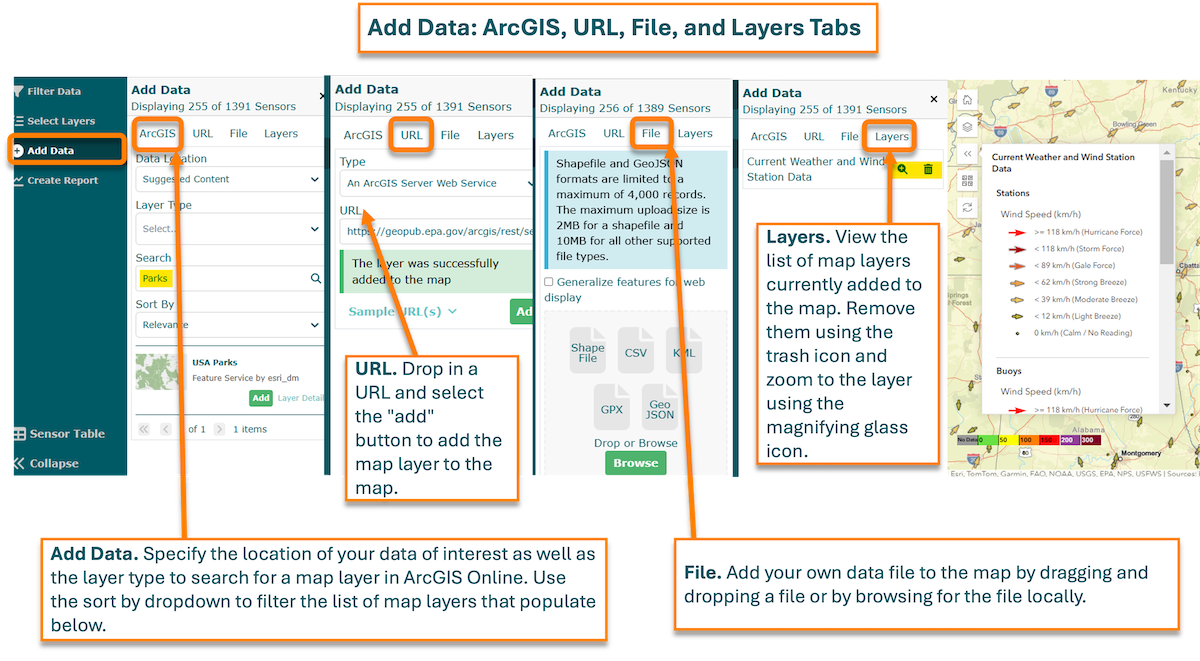
Users may: (1) browse or search for available map data from the ArcGIS Online data library; (2) add data layers via URL; or (3) upload data files saved locally on a computer or laptop. Under the layer tab, users can remove layers with the trash can icon or zoom to a layer with the magnifying glass icon.
This tab offers several ways to search for data or map layers from the ArcGIS Online library to display on your map. Once identified, layers can be added to the map using the green “Add” button and removed using the same green “Remove” button.
Default settings allow the user to perform a basic search using keywords of your choice.
Advanced settings for searching for data from the ArcGIS Online Library are listed below.
Another advanced option allows the user to upload data using a web address to your Dashboard map. First, select the type or format of the layer you will upload (options include: an ArcGIS Server Web Service; WCS; WMS; WFS OGC Web Service; KML; GeoRSS; or CSV file). Next, enter your URL and click “Add.” Clicking on “Sample URLs” gives users two examples that can be copied and pasted into the URL bar to test adding layers to the map in this way.
Finally, for users who have access to, or the ability to create, their own GIS Data, this feature allows you to add certain types of files. Drag and drop a layer file saved on your computer to add it to your map, or browse from local files.
View and manage the map layers you’ve added from the Add Data panel. Users can remove layers with the trash can icon, or zoom to a layer with the magnifying glass icon.
The Create Report tool lets you generate in-depth reports for your area of interest. Users may select a point on the map from which to draw a radius of up to 3.5 miles, or choose a county or zip code, to generate a report.
To create a report for an entire county or zip code, go to the Select Layers menu under Geographic Boundaries and check the box next to the boundaries you wish to see on the map. Zoom in and click on the map, making sure that the highlighted area is correctly identifying your county or zip code of interest. In the pop-up box you should see a green button that reads “Open Report.” Click this button to begin creating your AirKeeper Report.
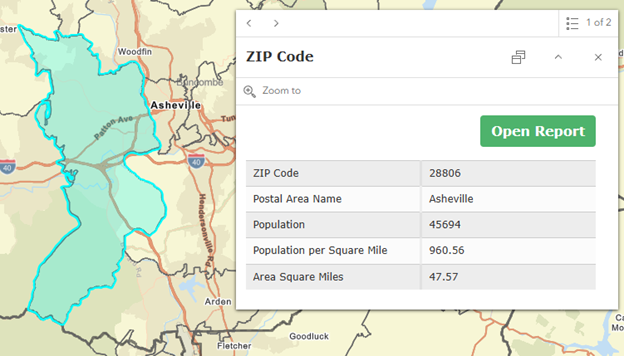
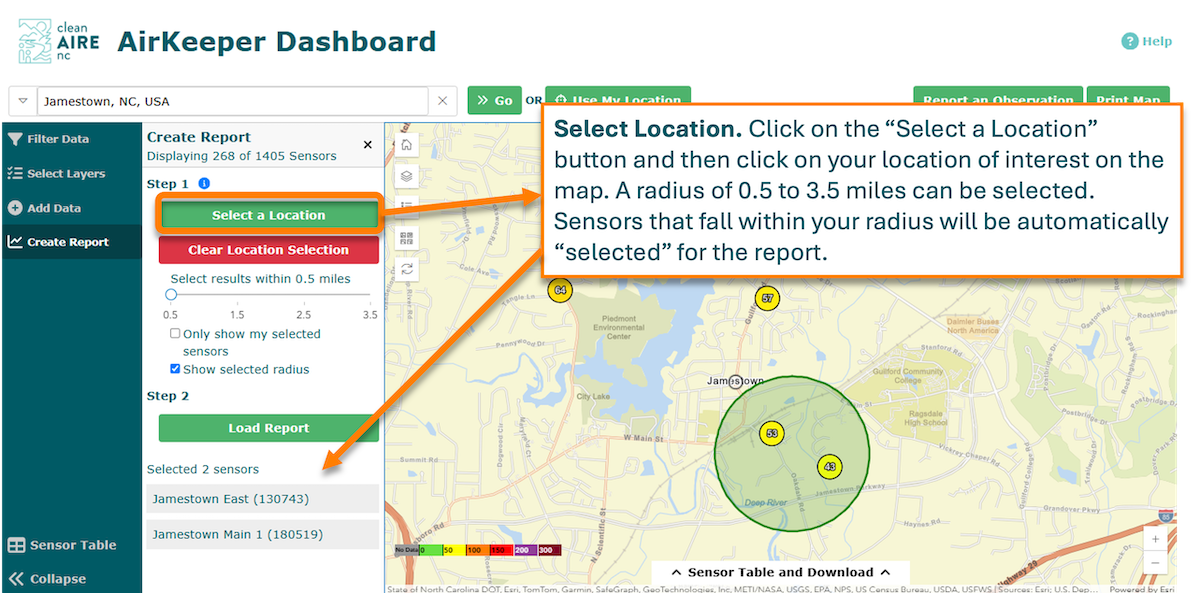
To create a report from a radius of your choice, open the Create a Report Menu from the Left Side Panel. Click on the “Select a Location” button then click on a point of interest on the map. This will draw a radius for your report. The default radius sie is 0.5 miles, but you can increase your radius up to 3.5 miles using the slider bar beneath. If you are not satisfied with the location of your radius, use the “Clear Location Selection Button” and try again. When you have identified the area for your report, click the “Load Report” button. This will open a customizable report in a new tab on your browser.
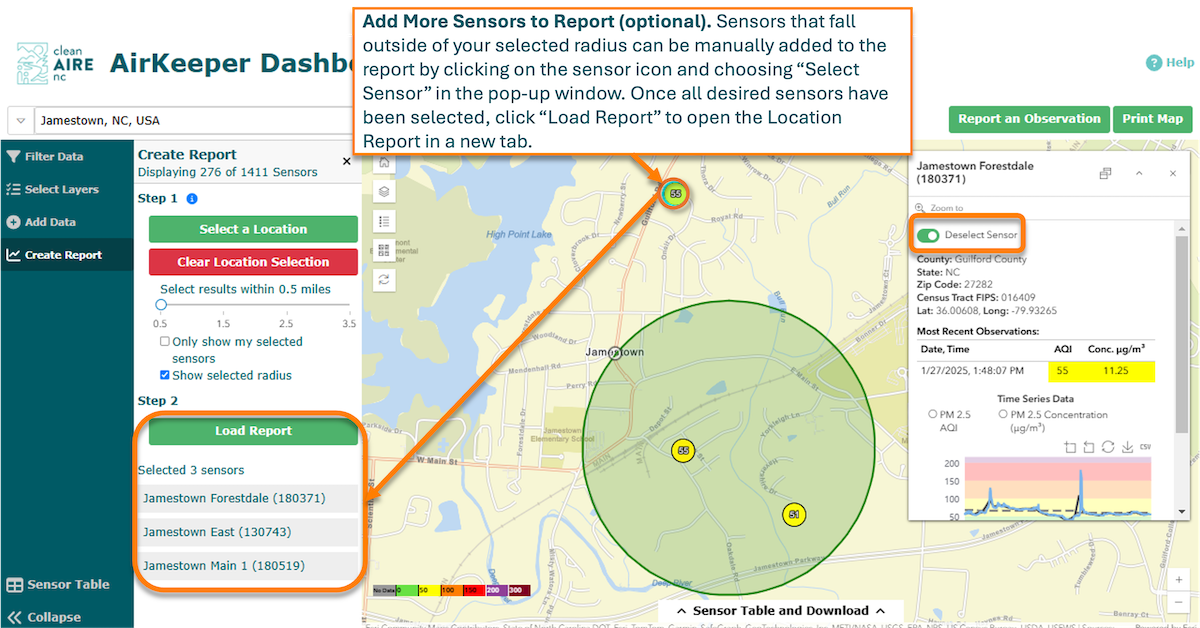
Customize your reports with the data you need (including air quality, pollution sources, health outcomes, etc.), all presented in easy-to-visualize charts and tables.
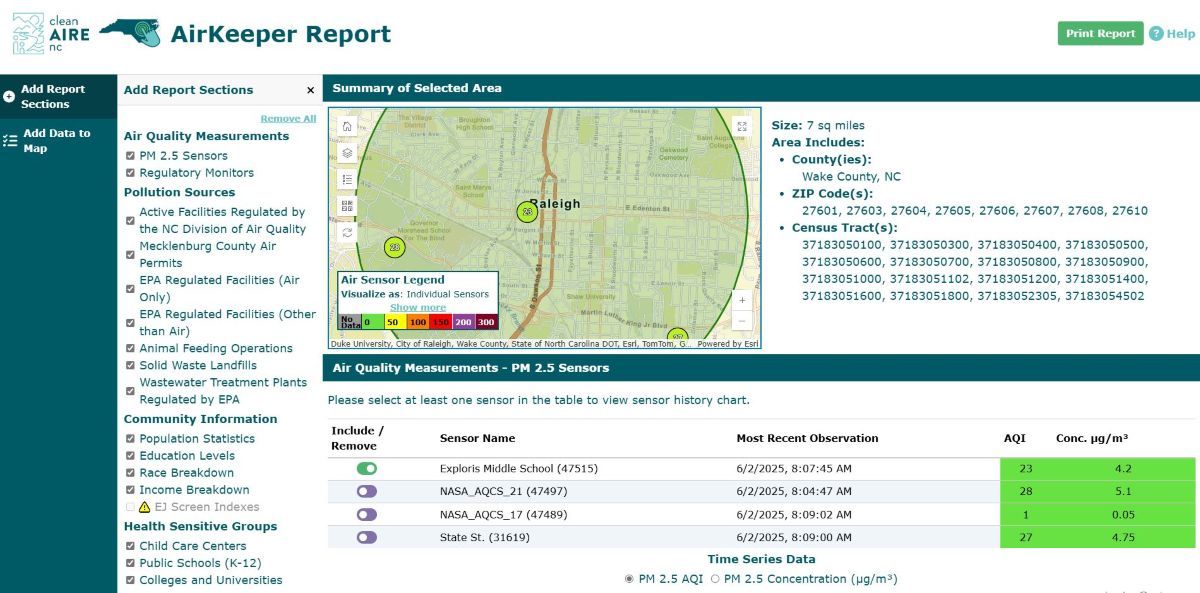
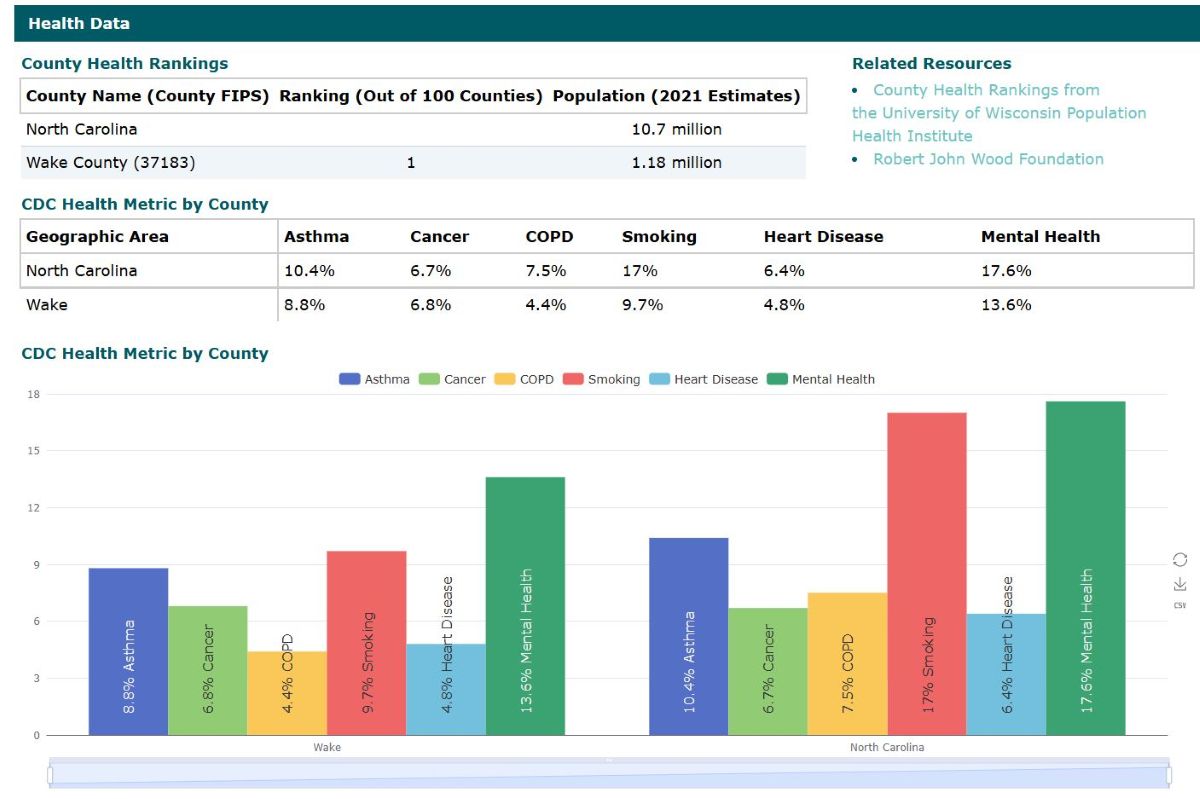
For more information on the data that can be included, see the Location Report Help.