
Navigating the Dashboard
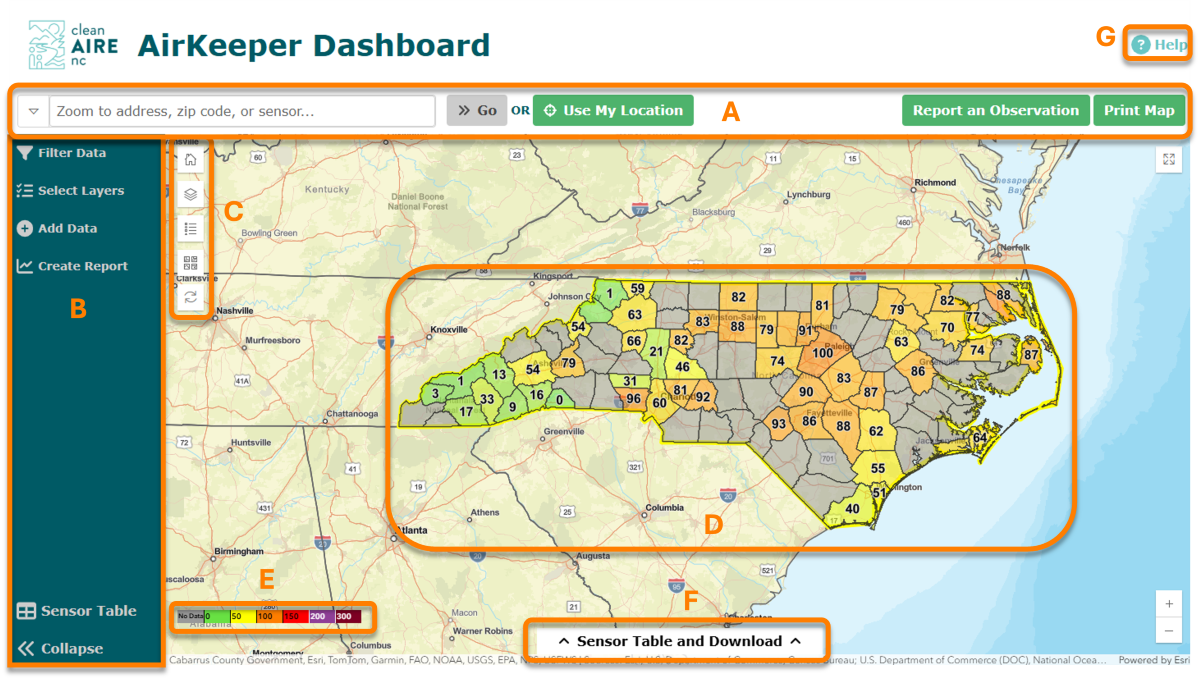
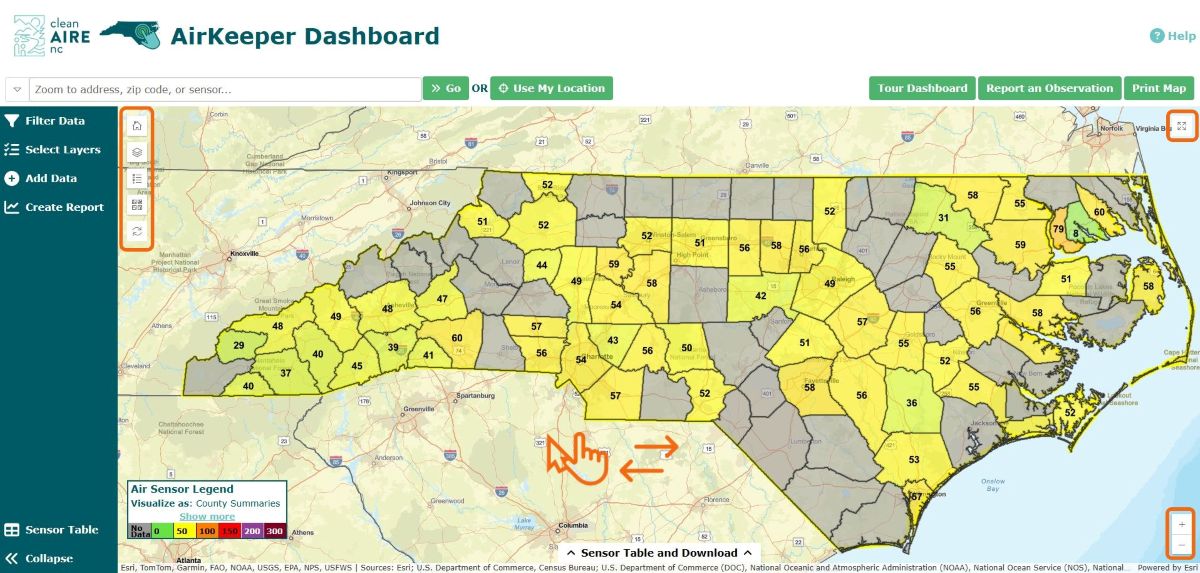
This section provides a quick tour of the major control panels and components of the AirKeeper Dashboard. Please use the labeled image below to follow along as we explore what each control on the dashboard is designed to do or launch the interactive tour directly from the “Tour Dashboard” button.
In tour mode, simply use your right and left arrow keys to advance or click next on the tour. Click “Exit Tour” to end. The Dashboard Tour button remains on the top control panel ready to launch at any time.
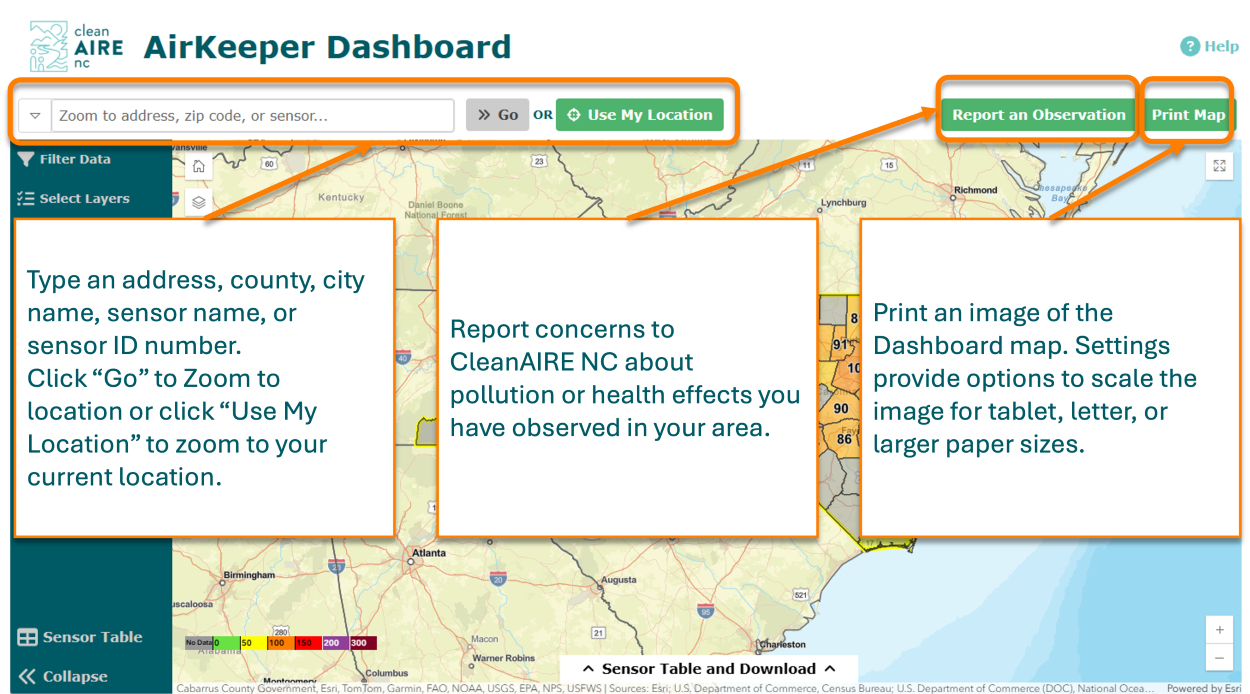
The Top Control Panel provides quick access to essential tools:
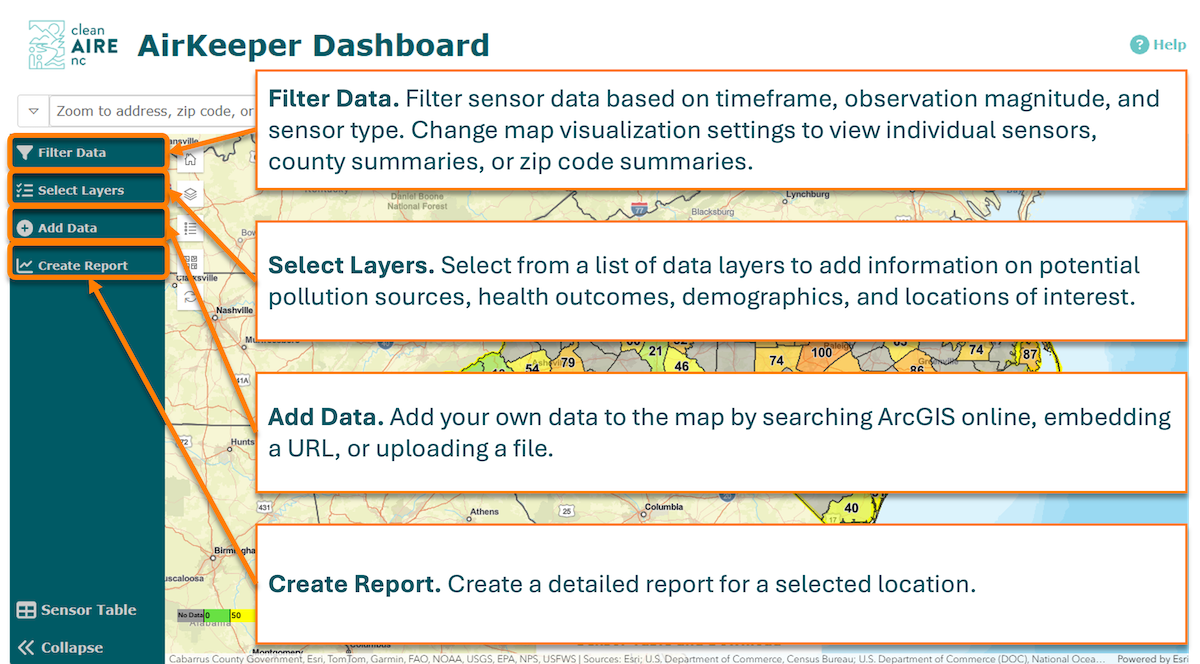
The Side Control Panel allows you to tailor the Dashboard to meet your needs:
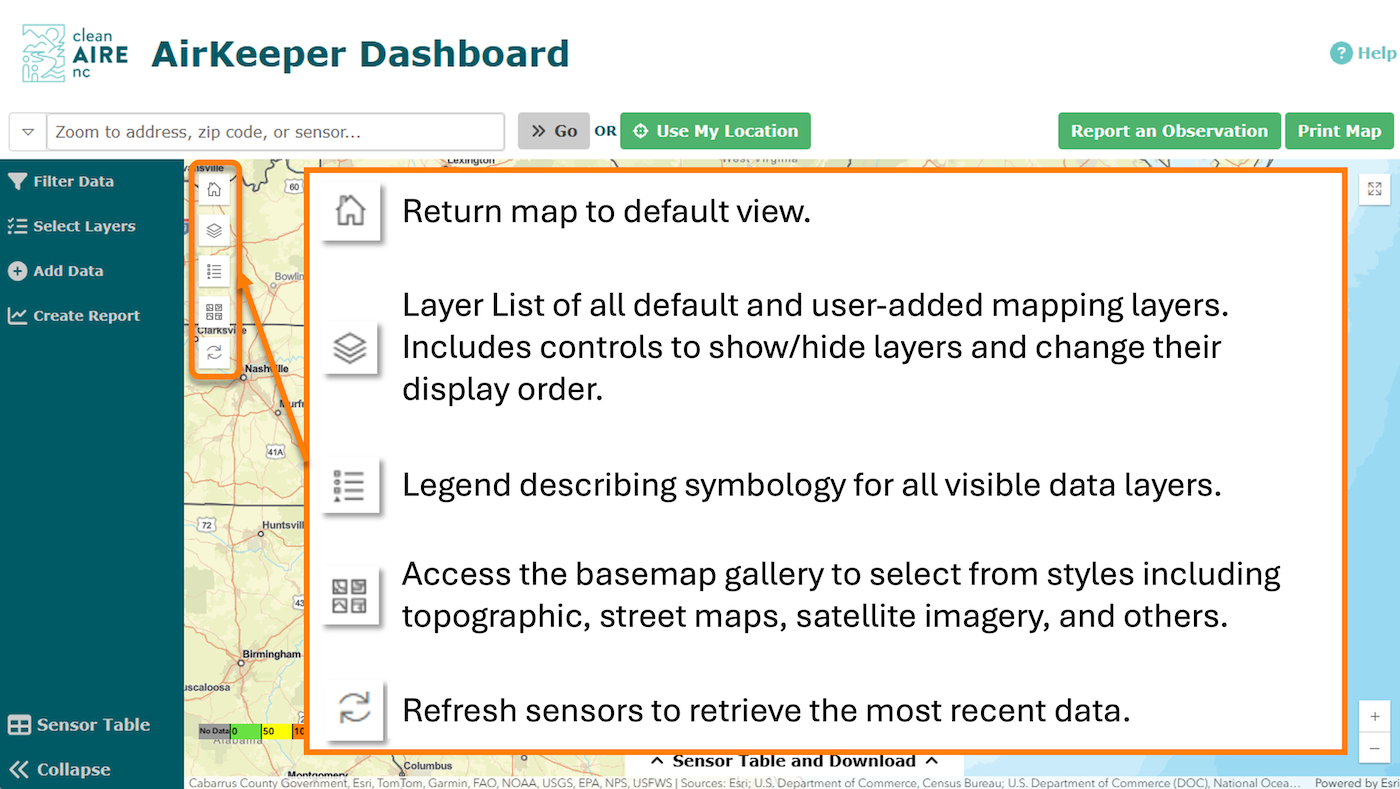
The Map Controls help you manage the map display:
The central, interactive AirKeeper Dashboard map is where you view data and navigate to the places you wish to see. It includes controls to: zoom in and out (by using the + and – buttons, mouse scrolling, or pinching on touch screens); pan around the map (by clicking and dragging to move the map); and expand the map to full screen and then exit back to normal view.
The visible area of the map is called the “map extent.” When you first open the AirKeeper Dashboard, the map extent covers the entire state of North Carolina. The default view (when you open or refresh the Dashboard in your browser) displays county-wide averages for particulate matter (PM2.5) measured through PurpleAir sensors and displayed using a standardized Air Quality Index (AQI).
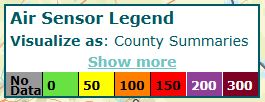
This legend explains the PM2.5 Air Quality Index (AQI) and PM2.5 concentration scales associated with the National Ambient Air Quality Standards (NAAQS). NAAQS are the health-based standards for PM2.5 and other Criteria Air Pollutants that are required to be maintained by the federal Clean Air Act and its Amendments. The AQI provides context for potential public health effects associated with the reported concentration.
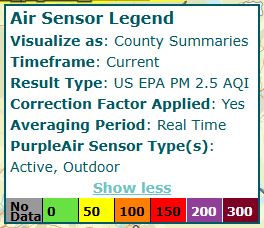
The Air Sensor Legend remains visible on the map at all times. Click the “Show more” text to view your current settings for displaying air sensor data. It can also be viewed through the Legend button on the Map Control Panel.
The Sensor Table, also known as an attribute table, displays PurpleAir sensor observations in a table format. The data shown matches the user’s settings in the Filter Data tool under “Visualize Results…” (e.g. county, zip code, or individual sensors). Download the data as a CSV file for further analysis.
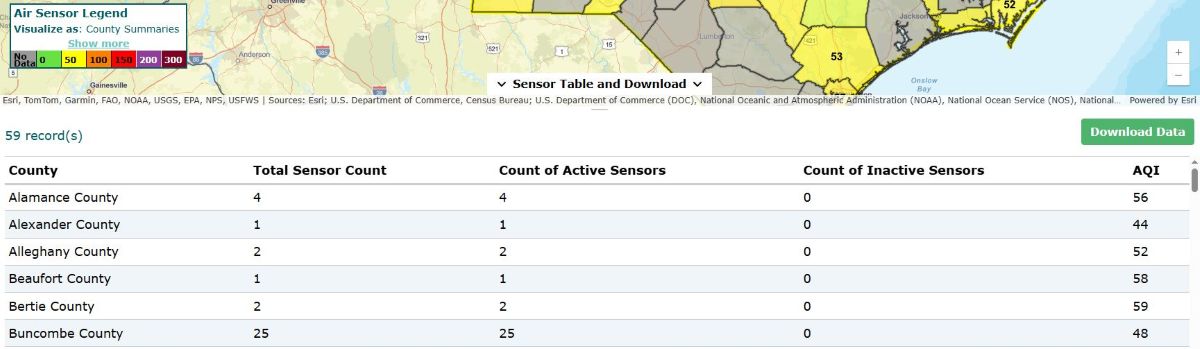
Tip: Access the sensor table at the left of the control panel or at the bottom of the screen.
This button will launch the AirKeeper Dashboard help content and additional resources through the CleanAIRE NC website.